In today’s fast-paced digital workflow, copy-paste is something we do hundreds of times a day. But what if your clipboard could do more than just move plain text or images? Enter Microsoft PowerToys Advanced Paste a powerful feature that redefines how you copy, transform, and paste data in Windows 11. In this guide, we’ll explore the key features, step-by-step usage, and real-world benefits of Advanced Paste, and why it’s a must-have productivity booster for developers, writers, content creators, and professionals
What Is Advanced Paste (in PowerToys)?
Advanced Paste is a module inside the Microsoft PowerToys suite that transforms what you paste from the clipboard. It lets you:
Paste text in cleaned or transformed formats
Save clipboard content as files (.txt, .html, .png)
Extract text from images (OCR)
Transcode audio/video into standard formats (MP3 / MP4)
Use optional AI prompts (with OpenAI key) to summarize, translate, or transform clipboard content
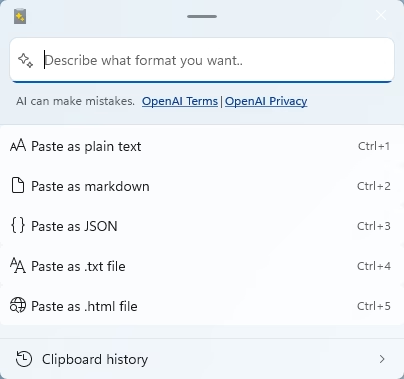
All “core” transformations run locally (no internet required), and AI is fully opt-in.
You trigger it via a window (default shortcut Win + Shift + V) or via dedicated keyboard shortcuts for specific actions.
How to Enable Advanced Paste in PowerToys
- Download PowerToys from the official Microsoft website.
- Install and open the PowerToys settings app.
- Go to Advanced Paste in the left menu.
- Switch the feature On.
- Use the shortcut Win + Shift + V to activate it.
Key Features & Examples
Below are the major features, with examples drawn from the official doc and testing, and step-by-step guidance.
1. Advanced Text Transformations
These let you convert clipboard text into cleaner or structured formats.
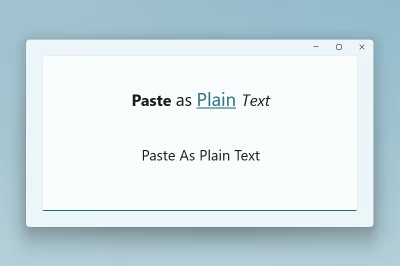
Paste as Plain Text
This strips away all formatting fonts, styles, links and pastes pure text.
Use case example: Copying from a styled web page and pasting into a plain editor (Notepad, console, etc.).
Paste as JSON
This transforms structured text (e.g. XML or HTML snippets) into JSON notation.
Example from doc:
<note>
  <to>Mr. Smith</to>
  <from>Ms. Nguyen</from>
  <body>Do you like PowerToys?</body>
</note>
becomes
{
  "note": {
    "to": "Mr. Smith",
    "from": "Ms. Nguyen",
    "body": "Do you like PowerToys?"
  }
}
This is done locally (no AI) and can be invoked with a shortcut or via the Advanced Paste UI.
Paste as Markdown
This converts common formatting into Markdown syntax.
Example from doc:
If clipboard has:
<b>Paste</b> <i>as</i> <a href="https://en.wikipedia.org/wiki/Markdown">Markdown</a>
It will become:

**Paste** *as* [Markdown](https://en.wikipedia.org/wiki/Markdown)
Again, this transformation is local and fast.
Paste as File (.txt / .html)
These options take text content and paste it as a file object. For example:
- Copy “Hello World!” → use “Paste as .txt file” → PowerToys generates a
.txtfile in a folder, with that text inside. - Copy a portion of a web page with internal HTML/links → “Paste as .html file” → generates an
.htmlfile preserving formatting and images.
These actions are especially useful when pasting into folders or apps that accept file drops.
2. Image-Based Pasting
These features help you work with images and embedded text.
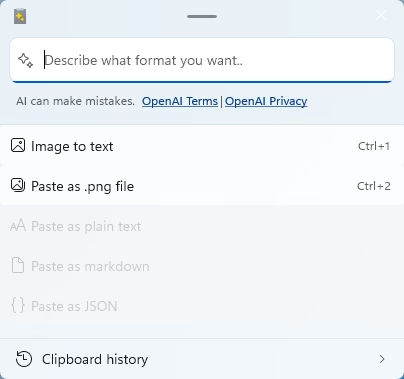
Image to Text (OCR)
If your clipboard contains an image (screenshot, scanned page, photo), Advanced Paste can use built-in OCR to extract textual content and paste it as editable text. This runs locally (no AI).
Example scenario: You snap a screenshot of a paragraph from a PDF slide. Use OCR → get the text pasted into Word to edit or translate.
Paste as PNG file
When the clipboard has an image, you can paste it directly as a .png image file.
Example use: Copying a screenshot and saving it as PNG into a folder without opening an editor.
3. Media Conversion
For audio or video content copied to the clipboard, Advanced Paste offers conversion:
- Transcode to MP3: extract audio track from a multimedia file.
- Transcode to MP4: convert video to a standard MP4 container using H.264/AAC.
During conversion, a progress ring shows the status, and the operation can be canceled mid-way if needed.
These features help when you want to reuse media in other formats (e.g. turning a video recording into a podcast).
4. AI-Powered Paste & Advanced AI
When you enable “Paste with AI” and supply your OpenAI API key, you can ask Advanced Paste to transform clipboard content using smart prompts.
Some common use cases:
- Summarize text: You paste a long article or report, prompt “Summarize into 5 bullet points,” and get a concise summary.
- Translate text: Clipboard content in one language → ask to translate into another.
- Generate code or reformat: Describe a function or operation in text → ask the AI to output code, or rewrite in a particular style (formal, casual, friendly).
- Combine with non-text input: With Advanced AI mode (using Semantic Kernel), you can chain steps — e.g. OCR image → translate → save as
.txtfile.
Example prompt from doc:
“Convert this image to text using OCR, translate the text to French, and then save the text as a
.txtfile.”
Or simply:
“Translate to French and save as.txtfile.”
Thus, Advanced AI allows both non-text inputs and non-text outputs and chaining.
How to Use Advanced Paste: Setup & Workflow
Here’s how to get started and integrate Advanced Paste into your daily workflow.
1. Enable Advanced Paste
In the PowerToys settings, find Advanced Paste under System Tools, and toggle it on.
2. Configure Shortcuts & Settings
- Default activation window shortcut: Win + Shift + V (customizable).
- You can assign direct shortcuts for specific actions like “Paste as plain text,” “Paste as Markdown,” “Paste as JSON.”
- Additional settings:
- Enable/disable clipboard history
- Automatically close the Advanced Paste window when it loses focus
- Show preview of custom format before pasting
- Enable or disable particular paste actions (image, file, media)
- Toggle AI features: “Enable Paste with AI” and “Enable advanced AI chaining”
⚠️ Important: You can remap Ctrl + V as activation, but overriding it is discouraged due to side effects.
3. Use the Window or Direct Shortcuts
- To open the full Advanced Paste UI: Win + Shift + V.
- To skip the UI and directly paste (e.g. plain text, Markdown, JSON), use your assigned direct shortcut.
- In the UI, browse the categories (Text, Image, Media, AI), preview the transformation, and click/paste.
4. Create Custom Actions (for AI)
- In the settings, under Actions, add your frequently used prompts (for summarizing, translating, rewriting).
- Give each a name and assign a shortcut.
- Then you can invoke these directly from the UI or via assigned keys without retyping the prompt each time.
Examples / Use Cases in Practice
- Copy a snippet of HTML from a web page and use Paste as Markdown to convert it for your documentation.
- Copy an XML data structure and use Paste as JSON to visualize or test it.
- Copy a captioned image screenshot with text (e.g. a slide) and run OCR → Image to Text to paste into a document.
- Copy an image and use Paste as PNG file to drop it into a folder (without opening an editor).
- Capture a short video clip (or have a video in clipboard), then use Transcode to MP3 to extract the audio track.
- Copy a long article and use AI prompt: “Summarize this into three bullet points.”
- Chain a prompt: “Translate this Hindi text to English and save as
.txtfile.”
These examples mirror those given in the Microsoft text and in third-party testing.
Why Advanced Paste Is a Game Changer
- Greater productivity: Reduces the need to jump between apps for conversions.
- Cleaner results: Avoids stray formatting or HTML garbage when pasting.
- Automation & consistency: Use saved actions to standardize your transformations.
- Local-first approach: Most features run offline AI is optional.
- Flexibility: Works with text, images, media, and AI chains.
Additionally, the feature is actively evolving. For example, improvements to handle line breaks from PDFs are planned to reduce manual clean-up.
Tips & Best Practices
- Always preview output before pasting especially when using AI.
- Don’t use AI features with highly sensitive data.
- Use meaningful names for custom actions to recall them easily.
- Avoid remapping core shortcuts like Ctrl + V.
- Update PowerToys regularly to get the latest fixes and enhancements.
- If media transcoding is slow, ensure you have free disk space and that the media file is fully resident in memory.
Frequently Asked Questions (FAQ) about Microsoft PowerToys Advanced Paste
1. What is Microsoft PowerToys Advanced Paste?
It’s a Windows clipboard enhancement tool that allows you to paste content in different formats, extract text from images, convert media, and even use AI to transform text.
2. How do I enable Advanced Paste in PowerToys?
Install PowerToys, open the settings, go to Advanced Paste, toggle it on, and use Win + Shift + V as the shortcut.
3. What formats can I paste with Advanced Paste?
You can paste as Plain Text, Markdown, JSON, save content as files, convert images to text, or even transcode media files.
4. Can Advanced Paste extract text from images?
Yes. With OCR, you can copy an image and paste the extracted text into any application.
5. Does Advanced Paste support AI features?
Yes. If you add your OpenAI API key, you can summarize, translate, and reformat text automatically.
6. How is it useful for developers?
Developers can quickly paste JSON, use Markdown for documentation, and extract code snippets from screenshots.
7. Is Microsoft PowerToys free?
Yes. PowerToys is a free and open-source Windows utility from Microsoft.
8. What is the shortcut for Advanced Paste?
The default shortcut is Win + Shift + V (customizable).
9. Can I save clipboard content as a file?
Yes. You can instantly save copied text or images as .txt, .html, or .png files.
10. Who benefits the most from Advanced Paste?
Writers, developers, students, researchers, content creators, and professionals who want to work more efficiently.